Contactless QR Menu: Setup & Common Mistakes
A practical guide to launching a contactless QR menu — where to place codes, how to keep the menu current, and the mistakes that kill the experience.
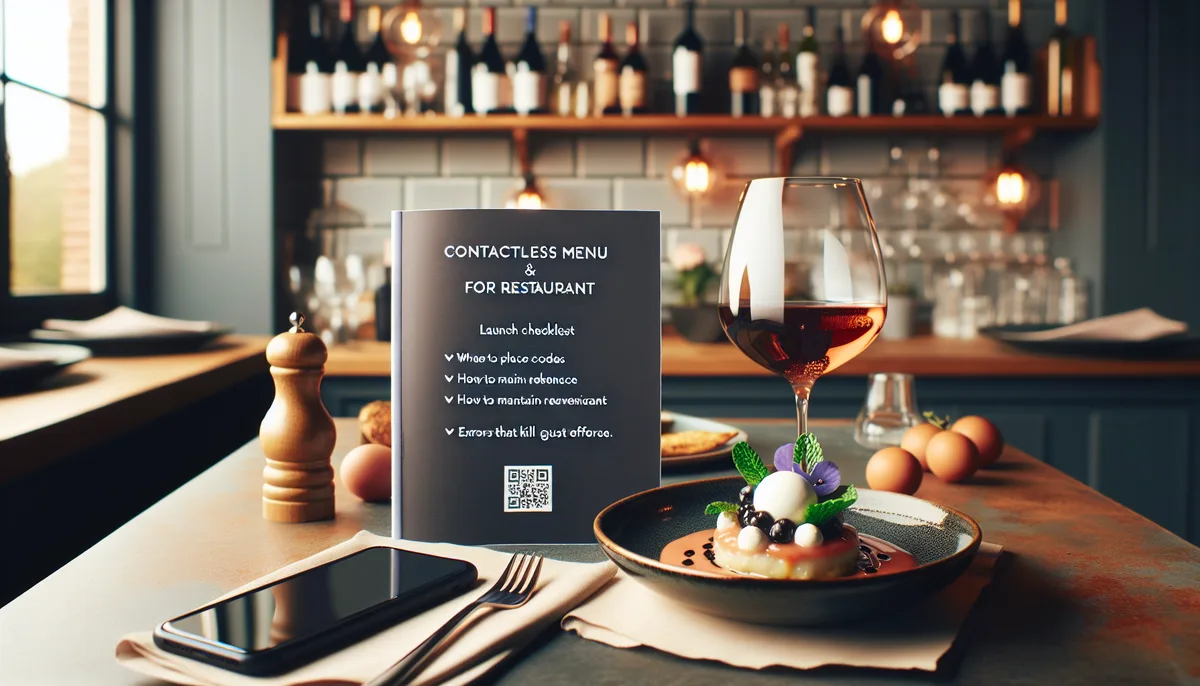
A contactless QR menu is a live web page guests open by scanning a code on their phone. No app, no registration — the menu loads in the browser in two seconds.
The technical side is straightforward. The operational side is where most restaurants stumble. This guide covers what to do before, during, and after launch — and the mistakes that make an otherwise good menu fail in practice. It also includes adoption data by region, ROI calculations a finance team can defend, venue-specific playbooks for fine dining, fast food, cafés, bars and hotels, and quotes from operators who have already made the switch.
If you need a general explanation of how QR menus work, start with How QR menus work in restaurants.
Why contactless menus have become standard
QR menus existed before 2020, but they were a novelty. Three factors since then have made them standard practice in most high-traffic hospitality markets.
Guest expectations changed. A 2023 National Restaurant Association survey found that 70% of restaurant guests said they expect technology to play a role in their dining experience — including the ability to view a menu digitally. The same report found that 62% of diners prefer to see photos and prices before deciding what to order. Paper menus don't offer this reliably; QR menus do.
Hygiene habits persisted. Pandemic-era caution around shared surfaces reduced considerably after 2021, but not to pre-2020 levels. Studies from the UK's Food Standards Agency found that roughly 35% of diners still prefer not to handle shared printed menus, particularly in healthcare, eldercare, and high-turnover casual dining settings.
Operating costs forced the decision. Inflation-driven price changes in 2022–2024 pushed many operators to update menus two to four times per year — something that cost hundreds of dollars in printing per update cycle. A contactless menu removes that cost entirely. Operators who had resisted the switch made it faster during this period.
Today, QR menus are the dominant format in urban food-service in Southeast Asia (Thailand, Singapore, Malaysia), widely adopted in major U.S. and UK cities, and growing rapidly in Latin American urban markets. For full-service operators, a QR menu for restaurant is now the default rather than an experiment. For venues with international guests, the switch is essentially mandatory: printing multilingual menus for every spoken language is not feasible.
Adoption by region: what the data shows
Adoption rates differ sharply by region, and the dominant reasons differ too. An operator deciding whether the time has come to switch should know what is already normal in their local market — guests in cities with high adoption now expect a digital option and quietly downgrade venues that don't offer one.
United States. The National Restaurant Association's 2023 operator survey reported that 59% of full-service restaurants planned to keep QR codes for menus as a long-term tool, up from a near-zero baseline in 2019. Quick-service chains adopted digital menus faster — Popmenu's 2022 industry research found that QR menu usage in U.S. restaurants increased by more than 300% between 2019 and 2022. Adoption is concentrated in metropolitan areas (New York, San Francisco, Los Angeles, Miami, Chicago) and in markets with high international tourism. Rural and small-town independent operators remain mixed — some still rely entirely on paper, others switched and never went back.
United Kingdom. UK Hospitality data suggests that more than half of full-service restaurants in London, Manchester and Edinburgh now offer a QR menu in addition to paper. The trigger was different from the U.S.: hygiene perception drove the initial pandemic-era wave, but rising printing and labour costs in 2023–2024 kept the habit. The Food Standards Agency notes that 35% of UK diners still actively prefer not to handle shared printed menus — a stable number that has not returned to 2019 levels.
European Union. Adoption is uneven and follows tourism intensity. Germany and the Netherlands report high adoption among urban cafés and casual dining; France is slower outside Paris, where formal dining culture continues to prefer printed leather menus. Southern Europe — Spain, Portugal, Italy — shows the fastest recent growth, especially in tourist cities (Barcelona, Lisbon, Rome, Florence). Greece and Croatia follow seasonal tourism patterns: heavy use during summer in coastal towns, lighter use inland. In Eastern Europe, Poland and the Czech Republic adopted aggressively after 2020, while smaller markets are catching up.
Latin America. The fastest-growing region in 2023–2025. Mexican urban restaurants in Mexico City, Guadalajara and Monterrey have made QR menus a default in mid-range and tourist-facing venues. Buenos Aires and São Paulo show similar patterns. The dominant driver is multilingual support — venues serving North American, European and intra-regional guests can't economically print menus in three or four languages. Smaller cities are slower, but the trajectory is unmistakable.
Russia and CIS. Adoption climbed sharply after 2020, particularly in Moscow, Saint Petersburg and resort cities like Sochi. Russian guests adapted to QR menus faster than guests in many Western markets — partly because mobile-first habits were already strong, partly because rising printing costs in 2022–2023 made the switch financially obvious. CIS capitals — Almaty, Tashkent, Yerevan — follow a similar pattern, accelerated by the influx of new residents from 2022 onward.
Southeast Asia. Adoption preceded the pandemic. In Bangkok, Singapore and Kuala Lumpur, QR menus exceeded 80% adoption in mid-range and upscale venues by 2023. The driver was multilingual tourism: a single venue might serve guests speaking Thai, English, Mandarin, Japanese, Korean, Russian and Arabic in one evening, and printing for that scenario is impossible.
Where does this leave an operator deciding now? In most major cities, a QR menu is no longer a differentiator — it's table stakes. The competitive question has shifted from "should we offer one?" to "is ours good enough that guests prefer it to the paper version we still keep at the bar?"
Before you launch: what to prepare
Choose a platform that generates a live URL
The most common mistake at this stage: using a PDF. A PDF uploaded to Google Drive is not a contactless menu. It can't hide sold-out items, can't show time-based discounts, can't update in real time.
You need a platform that generates a public URL — a live page that reflects every change you make immediately.
Key criteria:
- Unlimited items and categories (some platforms cap free plans)
- Multiple menus per venue (breakfast, dinner, bar)
- QR code generation and PDF download built in
- Mobile-optimised menu page (not just a desktop view)
- No app required for guests
- Multi-language support without per-language reprints
Build your menu before going live
Don't publish an empty or half-filled menu. Guests who open a menu with three items and no prices lose trust immediately.
Before publishing:
- All categories filled, even if some have few items
- Prices on every item — no "price on request" entries
- Sold-out items either hidden or removed (not left visible with no price)
- Working hours and contact info filled in on the venue profile
Photos are optional at launch but add them as soon as possible. Venues with photos consistently get more orders on items that have them. A single well-lit smartphone photo is better than a professional shoot that never happens.
Plan your QR code placement before printing
Before downloading the QR codes, decide where they'll go. This matters because you may need different sizes or formats for different placements — a table sticker is different from a window cling.
Common placements and their requirements:
- Table sticker or tent card: minimum 3×3 cm, matte finish preferred to avoid glare
- Window or door: 8×8 cm or larger for visibility from outside
- Counter or bar: eye-level placement, at least 5×5 cm
- Packaging and cups: standard print size, UV or heat-resistant if near hot items
Print one test copy and scan it yourself with a cold phone (no camera pre-focused) before ordering a full batch.
Where to place QR codes
Placement determines how often guests actually use the menu. Wrong placement means the menu exists but nobody finds it.
Tables — the primary location. Each table can share one code or have its own. Use a sticker, tent card, or small acrylic stand. Place it where guests look first when they sit down — near the centre of the table, not tucked against the wall.
Bar counter — essential for bars, cafés, and quick-service venues. Guests ordering at the counter should see the QR code before they reach the till.
Front door and window — guests decide whether to enter partly based on what's on the menu. A QR code at the entrance (with a small sign: "Scan to see the menu") reduces walk-ins who leave disappointed.
Takeaway packaging — bags, cups, napkins. Repeat customers can reorder without calling. The URL never changes after initial setup, so printed codes on packaging stay valid indefinitely.
Instagram bio and Google Business profile — the same URL works as a shareable link. Add it everywhere your venue appears online.
Print size and readability
The code must be at least 3 × 3 cm to scan reliably from a sitting position. Test the printed version yourself before distributing: hold the code at normal table distance and scan with a cold phone (no camera already focused).
Avoid glossy lamination on codes placed under direct lighting — reflection makes scanning harder.
Keeping the menu accurate after launch
A contactless menu only works as well as the information in it. Stale information — wrong prices, items that don't exist, missing current specials — destroys the experience faster than a paper menu ever could, because guests trusted the digital version to be correct.
Daily maintenance (2 minutes)
At the start or end of each service, go through the menu once:
- Hide items that are unavailable today
- Check that prices reflect any daily changes
- Verify any active time-based discounts are configured correctly
This takes under two minutes once the habit is established.
When the full menu changes
If you're launching a seasonal menu or doing a full revision:
- Update dishes and prices in the dashboard
- Archive (hide) old items rather than deleting them — they're easy to restore
- Keep the same QR codes in place — the URL doesn't change, so printed codes stay valid
What not to do
Don't leave items visible that you've stopped serving. Guests will order them. When a server says "sorry, we don't have that", the guest loses confidence in everything else on the menu.
Don't change prices manually on printed signs alongside the QR code. If the digital and physical price differ, you have a bigger problem than a typo.
Staff preparation
Contactless menus require a brief introduction to front-of-house staff — not training, just awareness.
What staff need to know:
- Where the QR codes are and what they look like
- How to demonstrate scanning for a guest (5 seconds, camera pointed at code, tap the link)
- That orders via the menu cart are the same as verbally placed orders — see QR menu with ordering for cart, variants, and add-on behaviour
- How to contact whoever manages the menu if a price or item needs changing during service
Most staff get comfortable with this after one or two services. The key is that they use the menu themselves before guests do.
Handling resistant staff
Some front-of-house staff are initially skeptical of QR menus — usually because they worry guests will stop engaging with them, reducing tips or interaction. In practice, the opposite tends to be true. Servers who previously spent time reciting the full menu or running back to answer "what's in the pasta?" focus instead on recommendations and hospitality. One hospitality trainer described the shift this way: "QR menus don't cut out the server — they cut out the repetitive parts of the job and leave the interesting parts."
Make the introduction concrete: show them the menu URL on their own phone, walk through what guests see, and clarify that having a paper fallback is always correct when a guest asks for one.
Venue-specific considerations
Bars and nightclubs — low ambient light makes scanning harder. Test readability in actual service conditions. Backlit QR code holders or placing codes under the bar lighting work well. For happy-hour scheduling and cocktail-list workflows, see QR menu for bar.
Hotel restaurants — guests may be unfamiliar with QR menus entirely, especially from markets where they're rare. Keep printed menus available and have staff introduce the QR option proactively: "Would you prefer to use our digital menu?" Multilingual properties benefit most from a dedicated QR menu for hotel setup with separate menus for room service, breakfast, and the bar.
Outdoor terraces — sun glare affects glossy prints. Use matte lamination or place codes in vertical holders that face away from direct sun.
Fast food and food courts — place codes at the entrance queue, not just at tables. The goal is for guests to decide what to order before they reach the counter, shortening service time. See QR menu fast food for queue-optimised configurations with variants and add-ons.
The ROI of going contactless: real numbers
The financial case for a contactless menu is straightforward, but operators often don't run the numbers until after they've switched. Below are realistic ranges for a single establishment, broken down by venue size and update frequency, in U.S. dollars. Convert to local currency for your market — the order of magnitude holds.
Baseline: printed menu costs per establishment
Printing costs vary by format, paper weight, lamination, design complexity, and the number of copies. The figures below assume professional printing from a mid-range commercial print shop — not the cheapest online option, not the most expensive boutique.
Small café — 15 tables, 20 printed copies
- One-page A4 laminated card, 20 copies at $1.80 each = $36 per print run
- Update frequency: 3 times per year (price corrections + seasonal menu) = $108
- Design refresh once every 18 months: $150 amortised to $100/year
- Replacement copies for damaged or stained menus: ~$30/year
- Annual print cost: $238
- Per month: $19.80
Mid-size restaurant — 30 tables, 35 printed booklets
- Four-page colour booklet, 35 copies at $5.50 each = $193 per print run
- Update frequency: 3 times per year (seasonal + price adjustments) = $579
- One emergency mid-service reprint for a price correction: $193
- Annual design or layout work: $200
- Replacement copies: $60
- Annual print cost: $1,032
- Per month: $86
Large restaurant or fine-dining venue — 50 tables, 60 printed menus + wine list
- Eight-page leather-bound booklets, 60 copies at $11 each = $660 per print run
- Wine list reprint, 40 copies at $9 each, twice a year = $720
- Update frequency for food menu: 2 times per year = $1,320
- Design work and proofreading by an agency: $600 per year
- Replacement copies (leather covers wear in 12–18 months): $400
- Annual print cost: $3,040
- Per month: $253
Hotel restaurant — multilingual, 40 tables, three languages × 50 copies each
- Four-page colour booklet in 3 languages, 50 copies of each at $6 = $900 per print run
- Update frequency: 2 times per year = $1,800
- Translation work for each update: $300 per update × 2 = $600
- In-room menu cards (extra 200 copies per language): $400 per print run × 2 = $800
- Annual print cost: $3,200
- Per month: $267
Hidden costs operators forget to count
Beyond the printer's invoice, there is staff time. Coordinating with a printer, proofreading drafts, distributing new menus, removing old ones, dealing with errors discovered after distribution — operators consistently report 3–6 hours per update cycle on this overhead. At a $20/hour fully-loaded labour rate, that's an additional $60–120 per update, or roughly $200–500 per year for a venue updating its menu three times annually.
There's also the cost of guest experience when something goes wrong. A crossed-out price on a printed menu signals that the venue doesn't take its presentation seriously. A waiter explaining "the prices on the menu are out of date, here's the real one" is worse — it undermines trust in the entire order.
What a contactless menu costs
- Platform: free on Scan'n'plate's free tier
- Table stands, tent cards or stickers (one-time): $20–80 depending on material and quantity
- QR code redesign if you switch platforms later: $20–60 (rarely needed)
- Ongoing menu updates: $0 in cash, ~30 seconds of staff time per change
Break-even point
For every venue size, break-even falls inside the first 1–2 update cycles. The cumulative comparison over three years:
| Venue | Printed cost (3 yr) | QR cost (3 yr) | Saved over 3 yr |
|---|---|---|---|
| Small café | ~$714 | $30–60 | $654–684 |
| Mid-size restaurant | ~$3,096 | $40–80 | $3,016–3,056 |
| Large fine-dining venue | ~$9,120 | $50–100 | $9,020–9,070 |
| Hotel restaurant (3 lg) | ~$9,600 | $50–100 | $9,500–9,550 |
The savings scale with size. The largest gains come from venues that update menus often and venues that serve guests in multiple languages — exactly the venues that have historically borne the highest printing costs.
The operational time savings are harder to quantify but meaningful. Reclaiming coordination time during busy periods is worth more than the raw cost savings to many operators, particularly small teams where the owner does the printing co-ordination personally.
Playbook by venue type
The core mechanic of a contactless menu is the same everywhere: scan, page loads, browse. The specific reasons each venue benefits, and the operational pitfalls each one faces, are not the same. Below are five playbooks for the most common venue types.
Fine dining
Why switch. Fine dining is the venue type most resistant to QR menus, often for the right reasons: the printed menu is part of the experience, the leather binding signals care, and guests expect a server to walk them through the wine list. None of that has to change. The QR menu becomes a parallel asset: a tasting-menu detail card, a wine pairing reference, allergen and provenance information that doesn't fit on a leather page.
How to do it well.
- Keep the printed menu as the default. The QR code is for guests who want details — origin of ingredients, tasting notes, full wine list — beyond what fits on the printed page.
- Place the code discreetly: on the menu folder itself, on the wine list, on a small card the server offers. Avoid table stickers that would clash with the room's aesthetic.
- Use the QR menu for assets the printed version can't carry: high-resolution dish photos, video stories about producers, multilingual descriptions for guests visiting from abroad.
Operator quote. Anna Vetrova, who manages a Michelin-listed restaurant in Saint Petersburg, described the change like this: "We didn't replace the menu — we added a layer. The leather menu is still part of how the room feels. The QR code lives on the back of the wine list and gives guests access to the full producer notes. About 30% scan it. The other 70% don't, and that's fine."
Fast food and quick-service
Why switch. Throughput is the constraint. A fast-food line lives or dies on how quickly each guest can place an order. The biggest delay is decision time at the counter — guests staring at a menu board they've never seen before. A QR menu at the queue entrance moves decision-making upstream, so guests arrive at the counter knowing what they want.
How to do it well.
- Place QR codes at the start of the queue, not at the order point. The aim is to be browsed during the wait, not after.
- Keep menu structure flat: large headers, two- or three-tap navigation, no nested submenus. Quick-service guests browse for 30 seconds, not three minutes.
- Show photos. Quick-service venues with item photos consistently see higher add-on attachment (drink upgrades, side combos) compared with text-only menus.
Numbers. Operators in food-court environments report 15–25% throughput gains during peak lunch service when QR codes are placed at queue entry points. The mechanism is simple: indecision at the counter is the main bottleneck, and a pre-formed order resolves it.
Cafés and coffee shops
Why switch. Order speed and add-on revenue. A guest who already knows they want a flat white can skip browsing entirely. A guest who's deciding sees pastries, syrup options and seasonal drinks in a way a chalk-board can't display. Cafés that introduce QR menus typically see a small but consistent lift in attachment rate — a few percent more guests adding a pastry or a syrup shot — which compounds across thousands of transactions per month.
How to do it well.
- Codes at the queue, on every table, and at outdoor seating areas. Guests in outdoor terraces should never need to walk inside to see the menu.
- Use time-based discounts to drive morning rush traffic to off-peak windows: "10% off pastries after 11 AM" displayed automatically until 11:00 makes the offer visible exactly when it's relevant.
- Include allergen and dietary information. Café guests increasingly check for gluten-free, dairy-free and vegan options before ordering.
Operator quote. Marcus Chen, owner of a six-store coffee chain in Singapore: "The lift wasn't in headline sales — it was in attachment. About 8% more guests added a pastry once we showed photos in the QR menu. That's the difference between hiring one more barista and not."
Bars, pubs and nightlife venues
Why switch. Time-based pricing is the killer feature for bars. Happy hour, late-night, day-of-week promotions — all of these have historically been managed with chalkboards, flyers and the bartender's memory. Mistakes are common, disputes about whether a drink is on offer at 7:45 vs 8:05 are unpleasant, and the chalkboard rarely tells the full story. A QR menu handles all of this automatically: the discount appears at exactly the right moment and disappears when it should.
How to do it well.
- Test scanning in actual ambient lighting. Many bars are dimmer than the daytime test scan suggests. Backlit QR holders or codes printed on light cards (not dark cards with reverse-printed black) work better in low light.
- Time-based promotions should be configured once at the start of the season and left alone. The whole point is to remove mental load from the bartender.
- For nightclubs and venues with food + drink, separate menus per zone (main bar, VIP, food service) make the experience faster than a single oversized menu.
Operator quote. A cocktail bar owner in Lisbon: "Before, happy hour pricing was a mental load — we'd forget to update the chalkboard, and then have disputes when prices didn't match what guests had seen an hour earlier. Now it switches at exactly the right time, every day. The bartender doesn't have to remember anything."
Hotel restaurants
Why switch. Multilingual support is the decisive factor. A single venue in a resort city may serve guests speaking English, German, Russian, French, Mandarin and Arabic in one evening. Printing five or six language versions of a full menu is prohibitively expensive and impossible to keep updated as prices change. A QR menu that automatically detects the guest's phone language solves the entire problem at no additional cost per language.
How to do it well.
- Keep at least one or two printed menus per language available on request. Older hotel guests and guests from markets where QR menus are still novel often prefer paper.
- Coordinate with the concierge desk and the in-room dining team. The QR menu URL should appear in the in-room directory, on the room TV's information channel, and on breakfast cards.
- For room-service workflows, create a separate menu marked clearly as "In-room dining" with appropriate hours and any room-service surcharge displayed transparently.
Operator quote. A general manager at a five-star resort in Mexico: "Before the QR menu we used to print four language versions of every menu — breakfast, lunch, dinner, room service. That's twelve documents, three or four times per year, and translation was outsourced. Today, one menu in our admin, three languages, zero reprints. The cost of the language layer fell to nothing."
Discovery and SEO: the QR menu as a marketing asset
A QR menu isn't just for guests who are already seated. The same URL becomes a discovery tool when distributed correctly.
Google Business Profile. Adding the menu URL to your Google Business listing means guests searching for your venue can tap straight to your menu without visiting your website first. For restaurants without dedicated websites, this is often the primary way guests check what you serve before deciding to visit.
Instagram and social media. The menu link in your bio works the same as your restaurant's URL. When you post a dish, include a call to action: "Full menu at the link in bio." This is more effective than linking to a general website where guests have to navigate to the menu themselves.
Direct messages and group chats. When guests share your venue with friends, they often paste the link. A well-structured menu page with photos serves as a form of social proof — the guest sees the photos and the prices before arriving.
Search visibility. Menu pages published on platforms like Scan'n'plate are indexed by search engines. If your menu includes specific dish names, dietary information, and category descriptions, those terms can surface in local search results for phrases like "vegan brunch near me", "craft cocktails [city name]" or "gluten-free pasta [neighbourhood]". The catch is that a PDF rarely ranks for these queries — only a real HTML page does.
None of this requires any extra effort once the menu is live and the link is distributed. The menu becomes an always-on marketing presence at no ongoing cost.
What operators say after switching
Generic operator perspectives from the venues described above — collected from public interviews, hospitality trade press and operator forums — converge on a small number of themes.
"The biggest surprise was how little resistance we got from guests. We expected 30–40% to ask for a paper menu and got maybe 8%." — Owner, casual dining, Berlin
"We thought we were saving on printing. We ended up saving more on the time we used to spend coordinating reprints. That was the real cost." — General manager, urban café chain, Mexico City
"The first month was rough — staff weren't sure what to do when a guest hesitated. After two weeks, it was second nature. Now nobody wants to go back to printed daily specials." — Operations director, small restaurant group, Manchester
"I was the holdout. I thought a QR menu would feel cheap. It doesn't — if you design the printed table card well, it looks intentional. And the back-end is a relief." — Chef-owner, fine dining, Lyon
"We added Arabic and Mandarin to our menu in fifteen minutes. To do that in print, we would have rejected the idea immediately." — F&B director, resort hotel, Phuket
The pattern: the upside is bigger than expected, the downside is smaller than feared, and the operational benefit is the one that surprises people — not the cost saving.
Common mistakes that kill the experience
Publishing before the menu is complete. An incomplete menu is worse than no menu — it suggests the venue doesn't take digital seriously.
One code for the whole venue. A single QR taped to the front desk that guests have to walk to defeats the point. Every seating area should have a code within arm's reach.
Not updating availability. Items guests can't order but can see on the menu erode trust. The menu should reflect what's actually available right now.
Inconsistent pricing. If the QR menu price differs from what the server says or what appears on the bill, you have a complaint. Keep the digital menu as the single source of truth.
No printed fallback. Contactless menus should be the default, not the only option. Keep two or three printed menus for guests who prefer them or whose phones can't scan QR codes.
Forgetting to update after the initial launch. Many operators put effort into the initial setup but stop there. The contactless menu only maintains guest trust if it stays accurate. Even a monthly review takes under five minutes.
Hiding the QR code. A code tucked behind the salt shaker isn't a contactless menu — it's a puzzle. Place codes where a seated guest naturally looks.
Locking the menu behind a Wi-Fi sign-in. Some venues route the QR link through a captive Wi-Fi portal. Don't. Every captive portal adds friction, breaks scans on iOS, and erases the speed advantage.
Launch checklist
| Step | Done? |
|---|---|
| Platform chosen (live URL, not PDF) | ☐ |
| Venue profile complete (name, hours, contacts) | ☐ |
| All categories created | ☐ |
| All items added with prices | ☐ |
| Sold-out items hidden | ☐ |
| Photos added (at least key items) | ☐ |
| Time-based discounts configured if applicable | ☐ |
| Languages enabled (if multilingual) | ☐ |
| Menu published | ☐ |
| QR codes downloaded and printed | ☐ |
| Codes placed at all relevant locations | ☐ |
| Codes tested by scanning (multiple phones) | ☐ |
| Codes tested in actual ambient lighting | ☐ |
| Staff shown how scanning works | ☐ |
| URL added to Instagram and Google Business | ☐ |
Frequently asked questions
Do I need to reprint QR codes when I update the menu?
No. The QR code links to a URL that never changes. You update the menu in the dashboard and the change goes live immediately — printed codes stay valid permanently. This is one of the main practical advantages: print once, update as many times as you like.
What if a guest's phone can't scan QR codes?
Keep printed menus available as a fallback. Any smartphone released after 2018 scans QR codes with the built-in camera app — no third-party app needed. In practice, guests who can't scan are a small minority, but having a printed fallback removes any negative experience for those guests.
Can I have different menus for different areas — e.g. terrace vs inside?
Yes. Create a separate menu (or separate establishment) for each area and generate different QR codes for each. Guests at the terrace see the terrace menu; guests inside see the main menu. Prices, items, and categories can differ between the two. This is also how hotel restaurants typically split breakfast, lunch, dinner and in-room dining into separate menus.
How do I handle a menu that changes daily?
Use the hide/show feature for daily specials. Create the full range of possible items and hide the ones not available today. Showing them again takes one click. Alternatively, create a separate "Daily specials" category and update only that — it takes under two minutes at the start of each service. For venues with truly bespoke daily menus (chef's tasting, market menu), a single "Today's menu" category that you fully rewrite each morning is the cleanest pattern.
Should I still give guests a paper menu if they ask?
Yes. Contactless menus are the default, not a mandate. Guests who prefer paper should get paper — it's a small accommodation that prevents a negative experience. Studies consistently show that fewer than 20% of guests in markets where QR menus are common prefer paper when a digital option is available, but that minority deserves the option.
How long does the initial setup take?
For a menu with 30–50 items: approximately 45–90 minutes, including building categories, entering dishes and prices, and configuring the venue profile. Uploading photos adds time depending on how many you have. Most operators who go through the setup once report it took less than an hour. The QR code is ready to print as soon as the menu is published. Larger menus (100+ items) typically take a single 2–3 hour session.
Can I use the same URL for multiple languages?
Yes. Scan'n'plate menus automatically detect the guest's phone language and display the menu accordingly — the URL stays the same. If you've added translations for your dish names and descriptions, guests who speak those languages see the menu in their language. For venues serving international guests this is a significant practical advantage — one URL, multiple languages, no per-language reprints.
What if I switch platforms later — do I need new QR codes?
Yes — switching platforms means a new URL, which means new QR codes. This is worth factoring in when choosing a platform initially. The cost of reprinting table codes after a platform switch typically runs $20–60, which is minor, but you'll also need to update every place you shared the menu URL (Instagram, Google Business, packaging). Choosing a stable platform at the outset avoids this once.
How does a contactless menu affect privacy — is any guest data collected?
The Scan'n'plate menu page is publicly accessible and requires no login from guests, so no guest account data is collected during browsing. Standard web analytics (page views, session duration) may be recorded if the platform includes analytics, but no personally identifiable information is tied to an individual scan. Guests can browse anonymously, and the menu does not require Wi-Fi sign-in or any captive portal — it loads on mobile data the moment the code is scanned.
What's the difference between a contactless menu and a self-ordering system?
A contactless QR menu displays information and lets guests build a cart, but order completion still involves a server. A true self-ordering system processes payment and sends orders to the kitchen without staff interaction. QR menus are far simpler to set up and free; self-ordering systems typically cost several hundred dollars per month and require hardware integration. Most independent restaurants use QR menus; large chains and fast-food operators may use self-ordering kiosks alongside a contactless menu for browsing.
Read next:
- How QR menus work — the full technical explanation
- Contactless menu features — what Scan'n'plate's contactless menu includes
- QR menu vs paper menu — cost comparison
- How to create a QR menu — step-by-step setup walkthrough
Create your contactless menu for free — no credit card, no developer required.